How to screen mirror your Centr workouts (iOS)Updated 2 days ago
How to screen mirror your Centr workouts (iOS)
Centr workouts can be cast to your TV using your iPhone’s built-in Screen Mirroring. Before you start, make sure your iPhone and your TV (or Apple TV) are connected to the same Wi-Fi network.
Steps
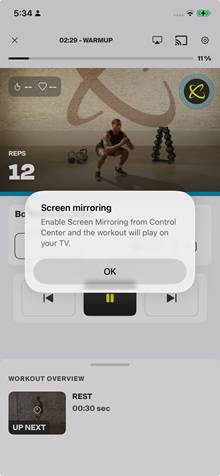
1. Start your workout in the Centr app. In the workout player, tap the Screen Mirroring icon near the top of the screen.

2. A “Screen mirroring” pop-up will appear reminding you to enable Screen Mirroring from Control Center. Tap OK.

3. Open Control Center on your iPhone by swiping down from the top-right corner of the screen.

4. Tap the Screen Mirroring icon (two overlapping rectangles) in Control Center.

5. Select your TV or Apple TV from the list of available devices.
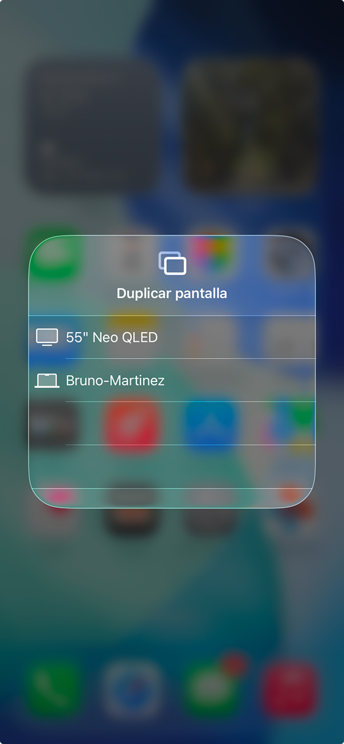
6. Return to the Centr app. Your workout will now play on your TV.
Having trouble?
- Confirm both your iPhone and TV are on the same Wi-Fi network.
- Your TV needs to be AirPlay-compatible (an Apple TV, or a smart TV with AirPlay 2 built in).
- If your TV doesn’t appear in the list, restart both devices and try again.
Still having issues? Reach out to our team at [email protected] and we’ll be happy to help.